

Install and connect
1
Add Guhan to Chrome
Install Guhan from the Chrome Web Store and, if you like, pin it to your toolbar.
2
Open LinkedIn
Go to any LinkedIn page. A small Guhan icon appears on the right edge of the window. If a LinkedIn tab was already open, reload it once.
3
Click the Guhan icon
The drawer opens on the right. The toolbar icon opens it too. Close it with the × in the drawer or the toolbar icon. You can drag the icon up or down to move it out of the way.
4
Connect your account
Click Connect to Guhan and sign in. You only do this once.
What the extension adds to LinkedIn
- The drawer. Opens beside the page and shows what Guhan found on it.
- Checkboxes and a Guhan bar on people searches and on your own connections, followers and following. See Searches and imports.
- A Guhan button on profiles, next to LinkedIn’s own buttons. See On a LinkedIn profile.
Around the drawer
- Home. The house button at the top opens Home on any page: a welcome, shortcuts to Lists, Campaigns, Inbox and Settings in Guhan, and one-click ways to start an import. If you are on a page Guhan can read, Back to this page takes you back.
- Workspace. If you belong to more than one workspace, switch between them from the name at the top.
- Credits. Your credit balance sits next to the workspace name. It updates after anything that spends credits.
- The ⋯ menu. Open Guhan takes you to your workspace, How to use opens a short illustrated guide, and Sign out disconnects the extension.
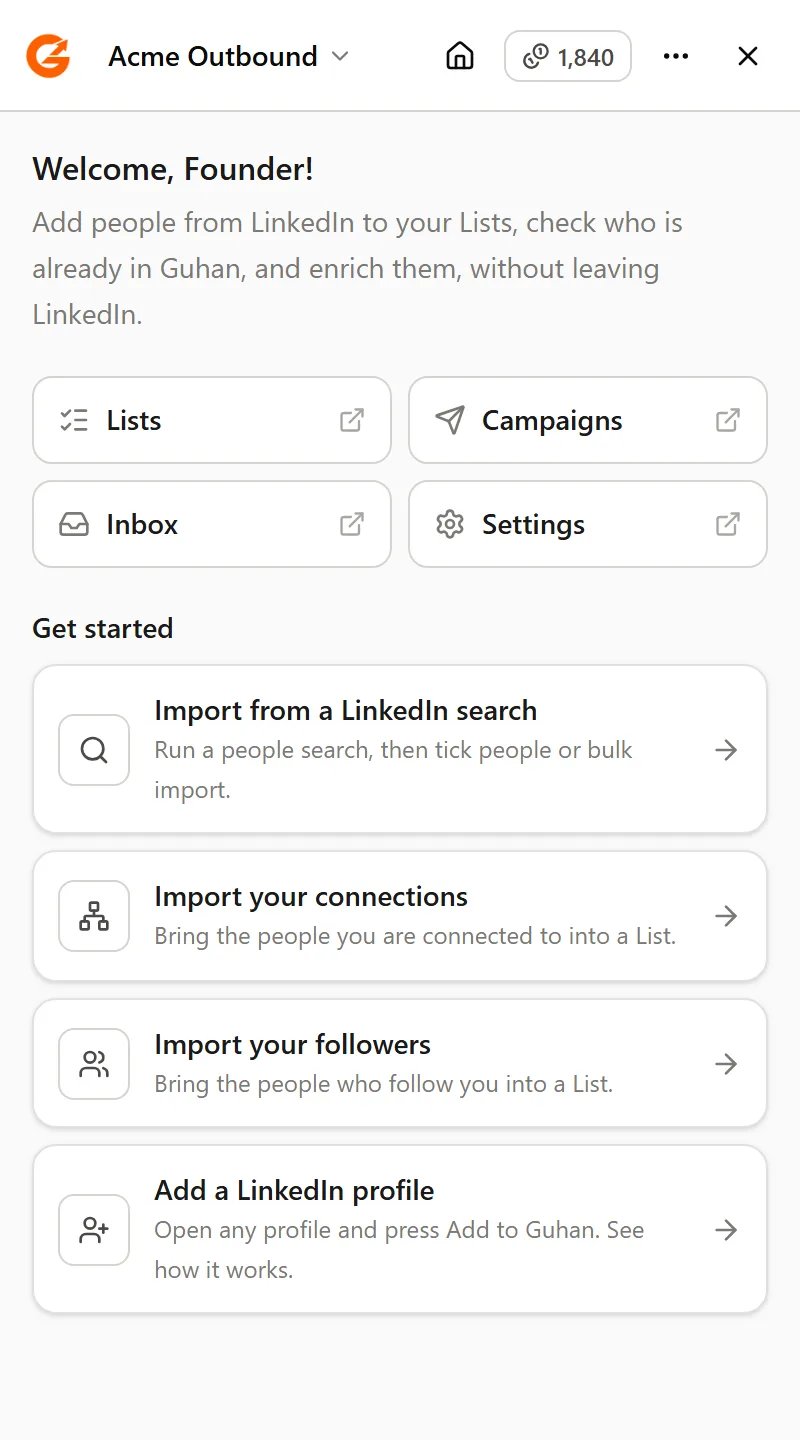
Home: shortcuts into Guhan and one-click ways to start an import
Which pages it works on
Related
On a profile
Status, adding to a List, enrichment, email and phone.
Searches and imports
Pick people, or bring a whole search into a List.