

Pick people on the page
A Guhan bar sits above the results with Select all, a count, Clear, Bulk import… and an Add to Guhan button. Tick the people you want, then press Add N to Guhan. The drawer opens on Add to list, where you choose the List and press the final button. Nothing is added until you do. Your picks are kept as you move through the result pages of that search, and the count in the bar follows you. Start a different search and you start with a fresh selection, so picks from earlier browsing never carry into the next import.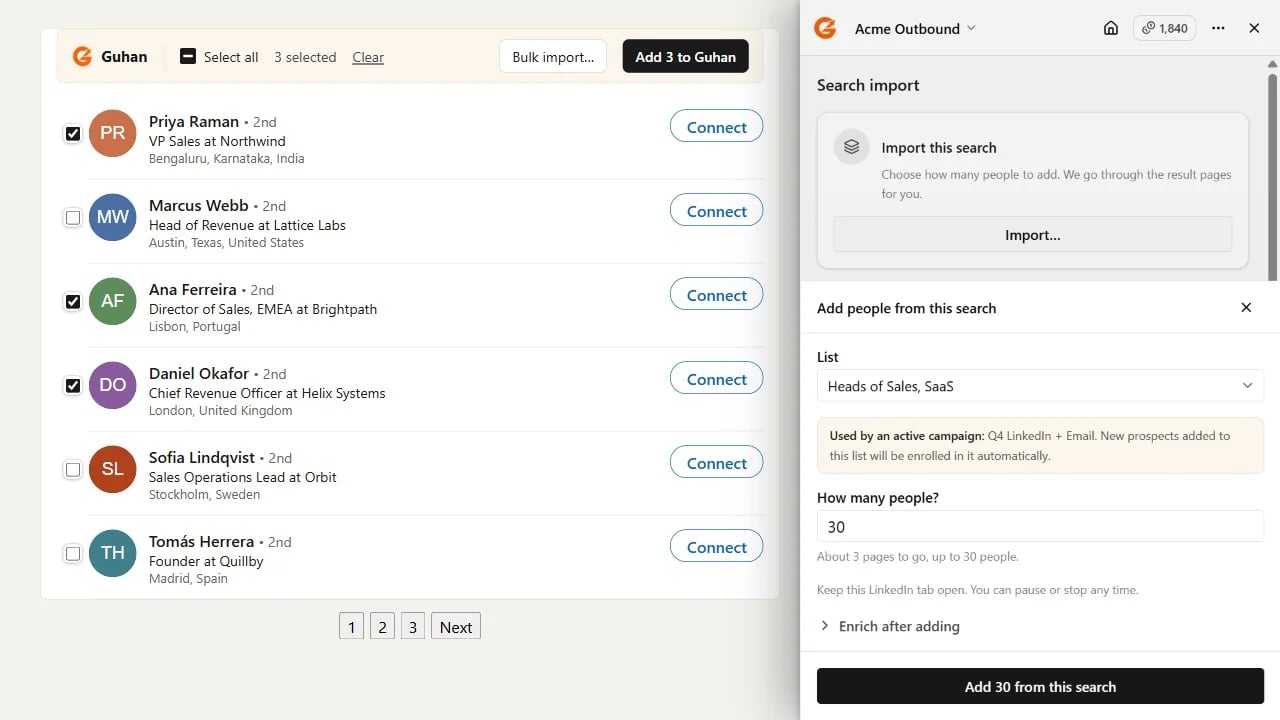
Ticked people, the Guhan bar, and the drawer on Add to list
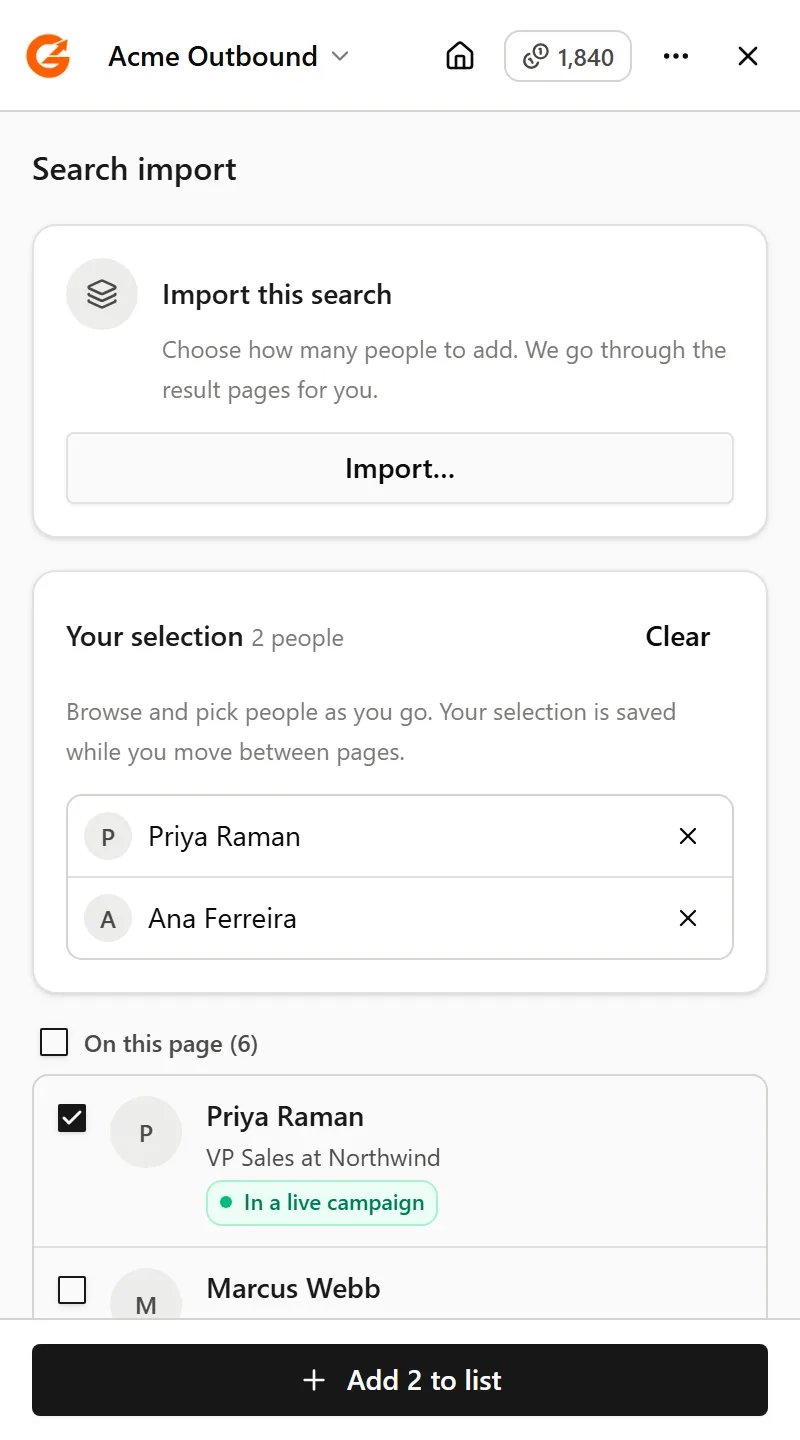
Your selection across pages
Bulk import
To add many people at once, press Bulk import… in the bar (or in the drawer’s Bulk import this search card). The import sheet asks for a List and how many people, and tells you how much there is:- On a search, it shows about how many pages are left and the most people they hold, for example “About 3 pages to go, up to 30 people.”
- On your connections, followers or following, it shows how many people the list has.
- The most you can import in one go is 999 (2,500 on a Sales Navigator search), or the room left in your workspace if that is smaller. Ask for more than exist and it stops early.
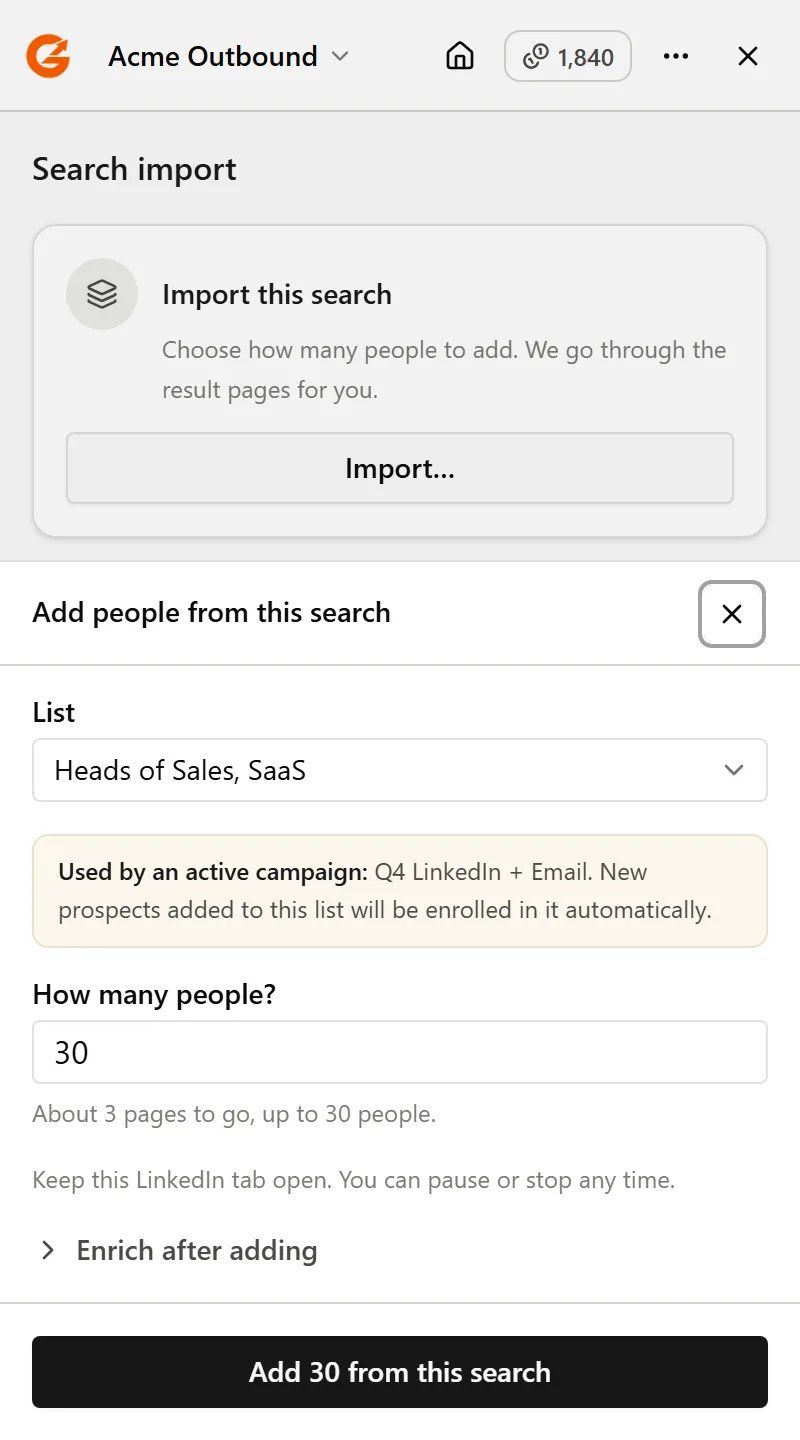
The import sheet: choose a List and how many, and see how much there is
Watch it work
A progress card at the top of the drawer shows how many people have been added, were already in the List, or couldn’t be added, and how far along it is. Pause or stop whenever you like; everyone already added stays added.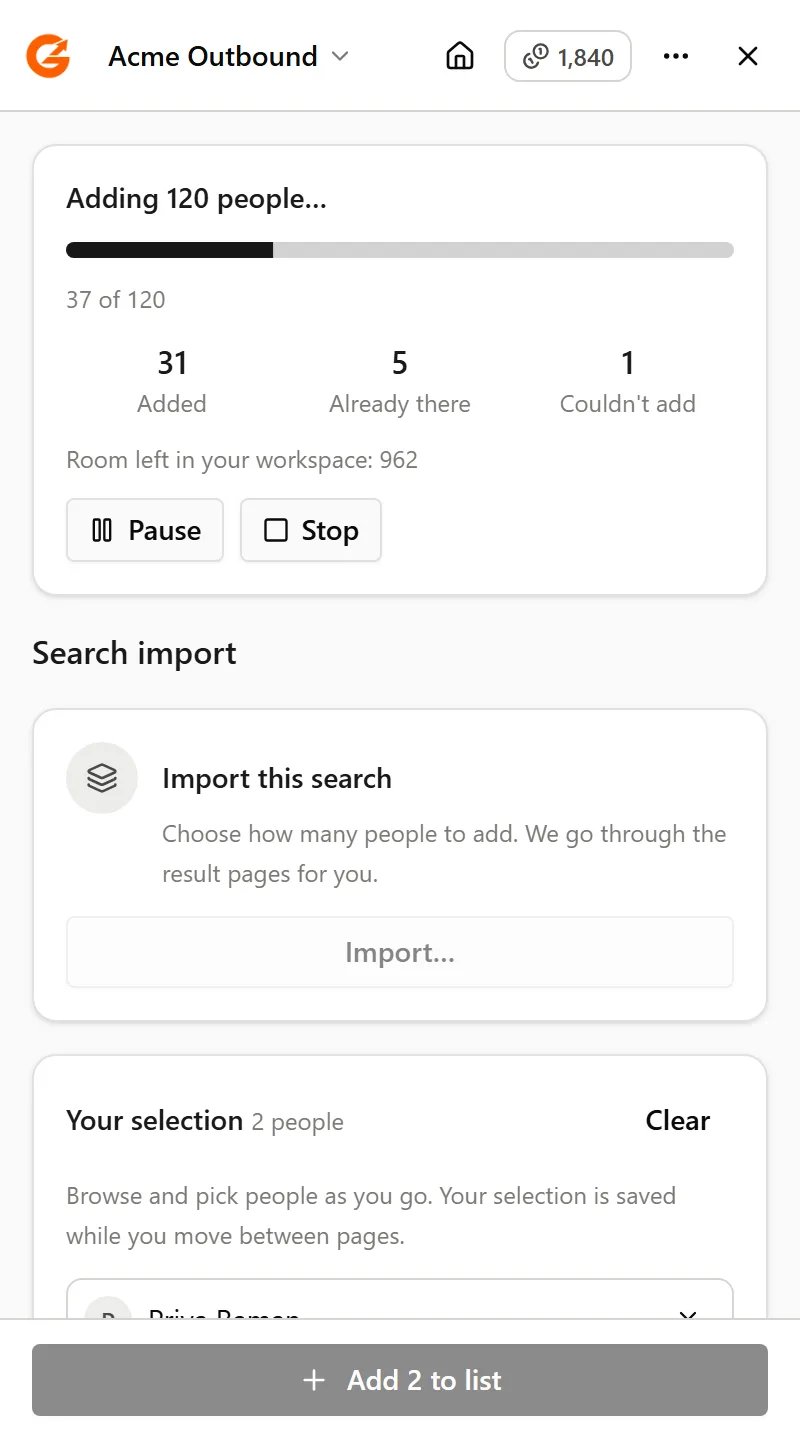
Progress for a running import, with Pause and Stop
Sales Navigator
On a Sales Navigator people search you get the same checkboxes, the same Guhan bar and the same bulk import. Sales Navigator shows 25 people a page and at most 100 pages, so one search holds up to 2,500 people, and that is the most one import takes.- Pages load as you scroll. Sales Navigator fills in each page’s rows only as the list scrolls. During a bulk import, Guhan scrolls the results for you in small, uneven steps, like a person reading down the page, then moves to the next page. A page takes roughly half a minute.
- If a page doesn’t finish loading, the import stops with “Some results on this page didn’t load” and keeps everyone already added. Scroll down the results once, then start again.
- Matching. Sales Navigator rows don’t carry a profile link, so people are matched by their LinkedIn member ID. Someone who is already in Guhan under only a profile link may be added again.
- Only people searches. Lead pages, account searches and saved lists in Sales Navigator are not read.
Your connections, followers and following
The same checkboxes, bar and bulk import work on your own connections, followers and following lists. Open the list, tick people or press Bulk import…, and the import sheet shows how many people the list has. Guhan scrolls the list for you, a few seconds at a time. LinkedIn doesn’t show anyone else’s followers or connections.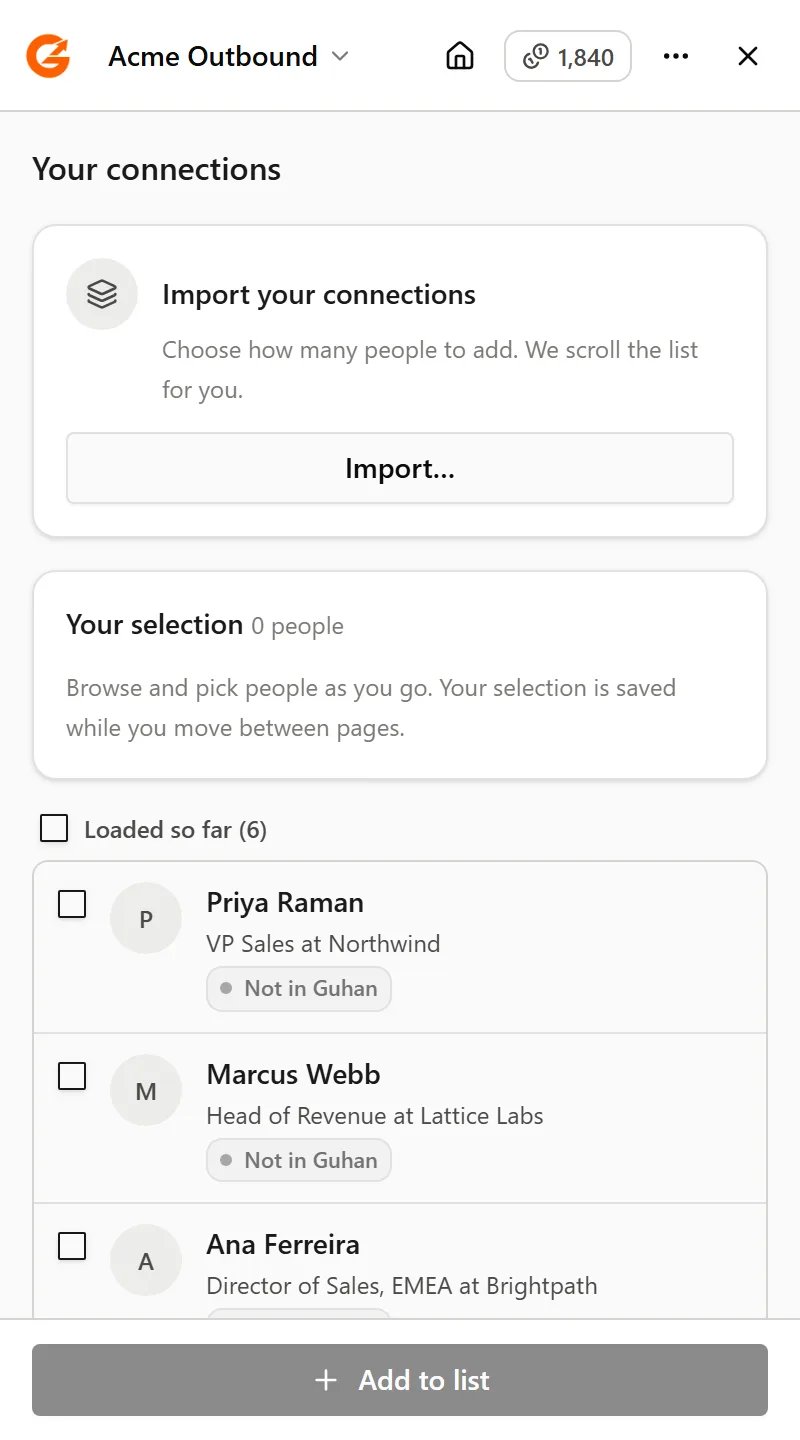
Your connections: the drawer lists the people loaded so far, and Bulk import… takes the whole list
People from these lists are matched by their LinkedIn member ID. Someone who’s already in Guhan under only a profile link may be added again.
If an import stops partway
LinkedIn may have asked you to check something, or the tab was closed. Look at the LinkedIn tab, finish anything it asks for, then start the import again. People already added stay added, and anyone already in the List is skipped.Related
Company, event and network pages
The same import on a company’s employees, an event’s attendees, or your followers.
Lists
Where the people you add end up.