

The steps
Credits are charged per successful result. Plans and credits is the canonical list of every credit cost.
On by default: profile, company and research brief. Off by default: both posts steps, email reveal and phone reveal, because they cost more or are not needed for every prospect.
Choose what gets enriched
You can set this at three levels. The most specific one wins.- Workspace default: Settings → Enrichment. Applies everywhere unless something more specific is set. Reset to defaults clears your changes.
- Per List: in step 2 of Import leads, and from Edit on a List. “Unset toggles inherit from workspace settings.”
- Per run: when you start an enrichment (for example the Enrich whole list panel), the choices you make there apply to that run only.
Some steps cannot be turned off. If one of your Who fits rules needs profile data (title, seniority, location) or company data (industry, company HQ, headcount), that step is checked and locked, with the note “Required by your prospect filter.” Without that data the rule could not be applied correctly.
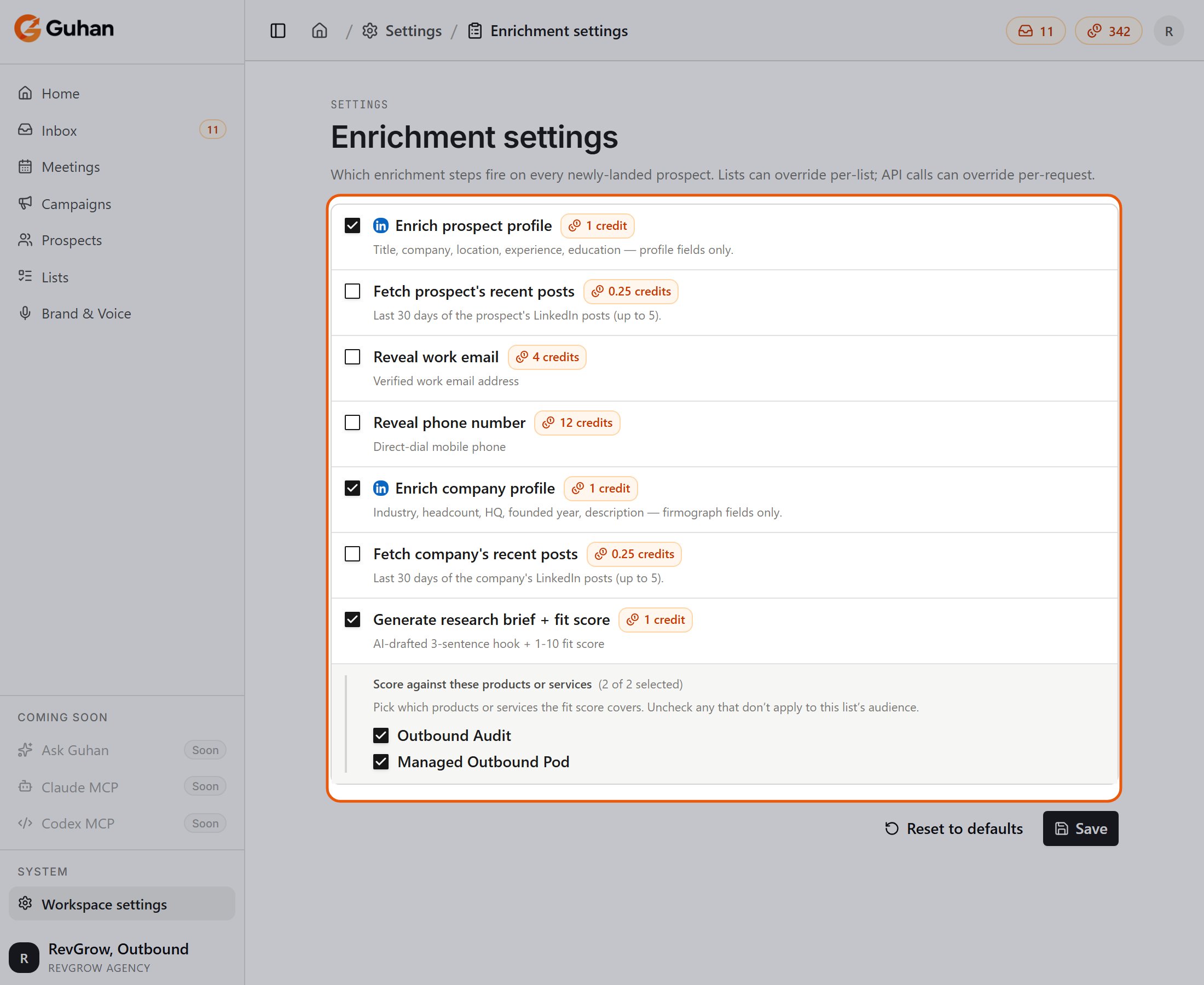
Enrichment settings: seven steps, each with its credit cost, and the products the fit score covers
Ways to enrich
The column wand
Hover over a column header on the People table (email, phone, job title, company, location, headline, industry, domain, company HQ, company size) and click the sparkle. It enriches the rows you selected, or every row on the page if none are selected. Empty cells show Enriching… while work is in progress. Cells that already have a value are skipped. Hover over an empty cell to enrich that one prospect.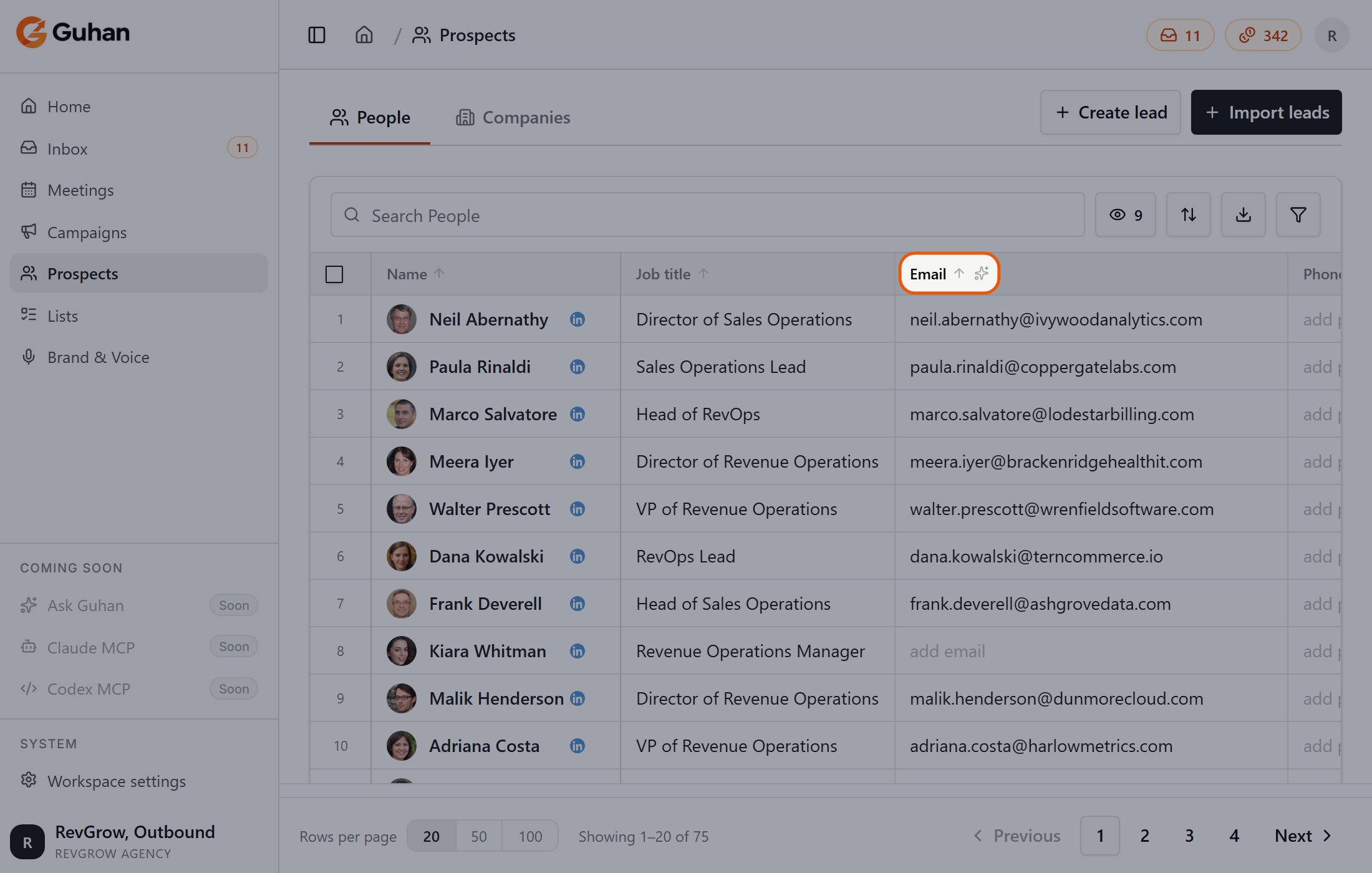
Hover a column header on the People table and the sparkle appears next to its name
Select rows, then Enrich
Select prospects (or companies) with the checkboxes and use the Enrich action in the bar that appears. A message tells you how many are queued and roughly how many credits it will use.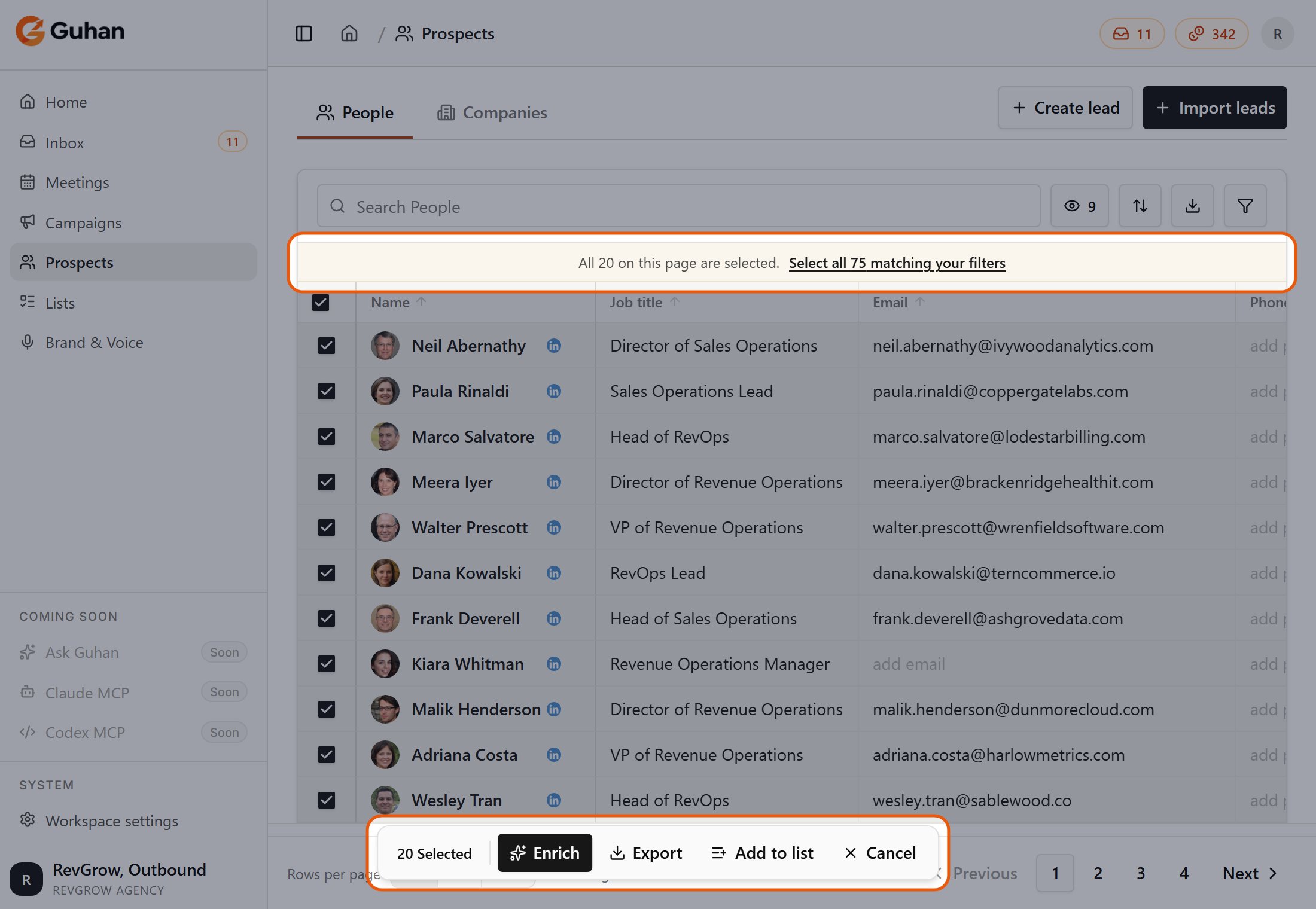
Select rows and the bar at the bottom offers Enrich, Export, Add to list and Cancel
Enrich a whole List
On a List page, click Enrich → Enrich whole list. Tick the steps you want (each shows its credit cost) and start. Guhan enriches every eligible prospect in the List and shows progress on the List page. Anything that is not eligible, such as someone with no LinkedIn URL, is skipped with a reason.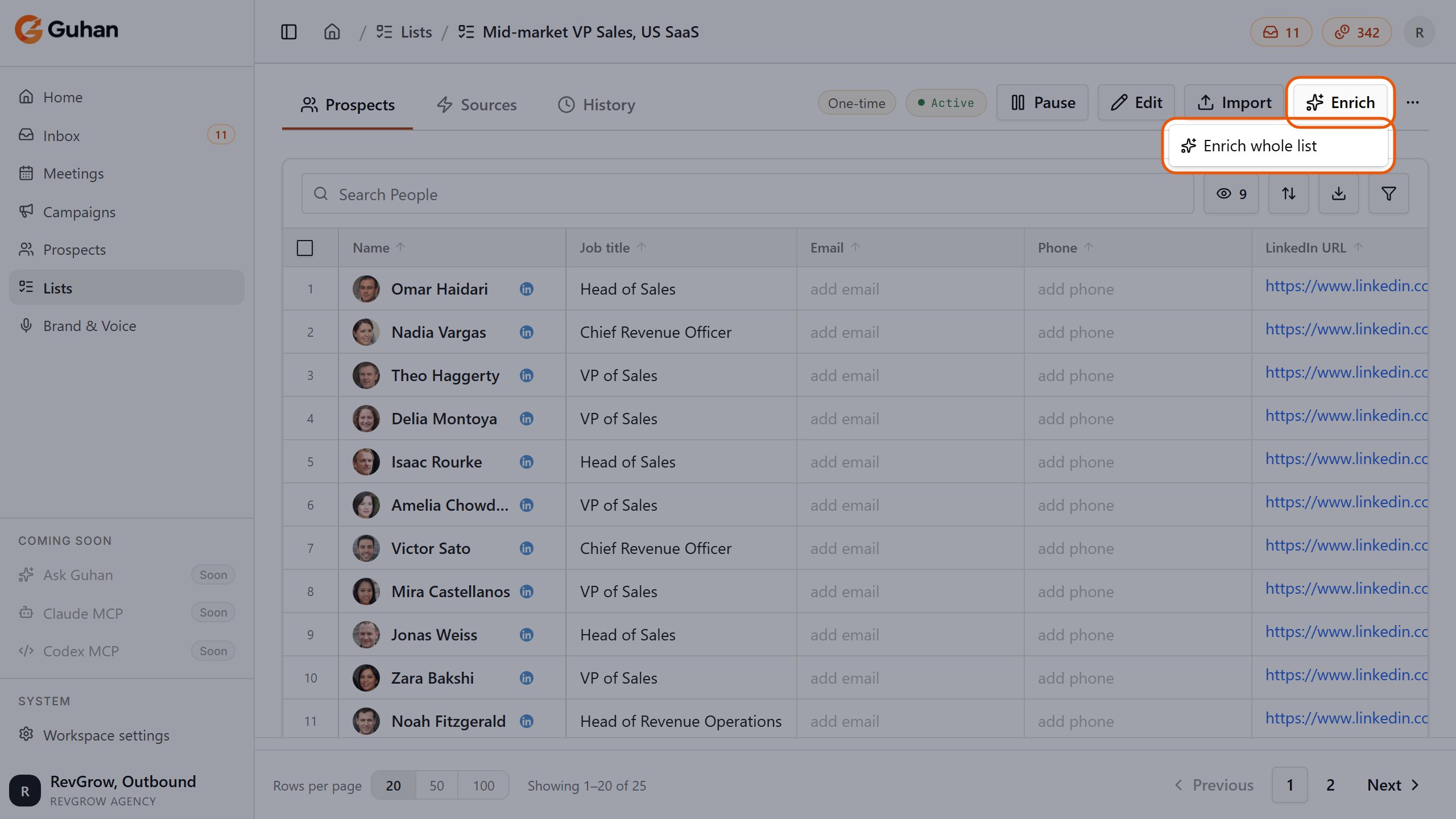
On a List page, Enrich opens Enrich whole list
One prospect or company
Click Enrich on the Details tab of a prospect or a company. For a prospect this runs the steps your settings enable.CSV uploads
The enrichment options in step 2 of Upload CSV decide what is filled in after the upload. Turn everything off if you do not want any.Reveal email and phone
Email and phone are not included with a LinkedIn profile, so you ask for them.- Click Find email or Find phone at the top of the prospect’s panel (each shows its credit cost), use the column wand on the Email or Phone column, or turn the reveal options on for a List.
- You are only charged when a result is found. No result, no charge.
- Reveal needs the prospect’s LinkedIn URL.
- Revealing the same prospect again within a day and getting the same value does not charge twice.
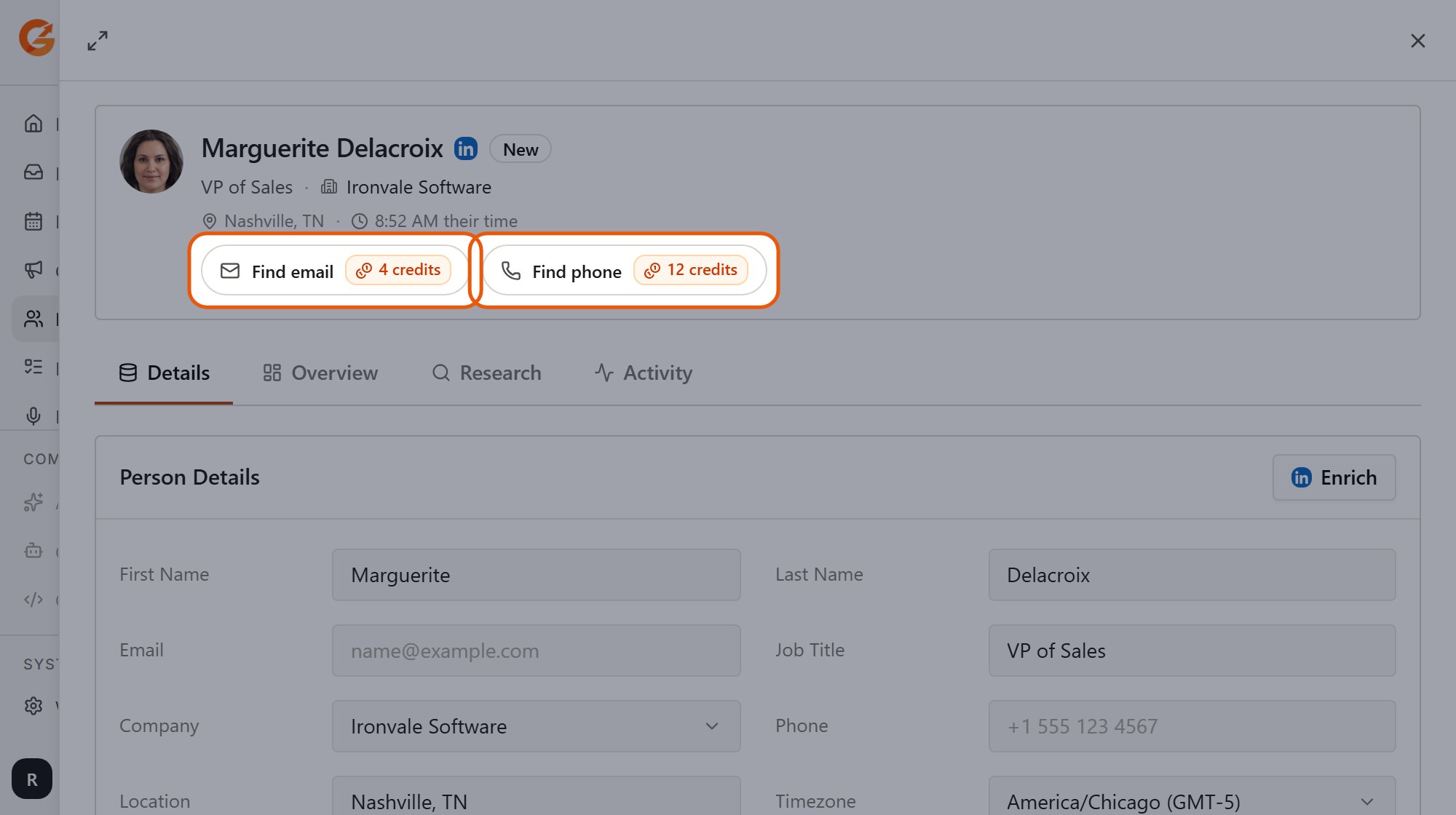
Find email and Find phone at the top of a prospect, each with its credit cost
Research brief
The brief is written when a prospect is added, if the step is on. To write or rewrite one later, use Regenerate brief on the prospect’s page, or run the research step in bulk. A prospect that already has a brief is skipped in bulk unless you regenerate. If the AI fails, the credit is refunded.What gets skipped, and why
Enrichment is careful not to spend credits twice. A step is skipped when:- The prospect has no LinkedIn URL.
- Their profile was enriched in the last 7 days, or enrichment has already been tried several times without success.
- Recent posts were fetched in the last 3 days.
- They already have a research brief, or are not on a List (the brief lives on the List entry).
- The same step is already running for that prospect. Starting it again does nothing and you are told it is in progress.
- A company step is requested but the prospect has no company on record.
If something looks off
I clicked enrich and nothing was charged
I clicked enrich and nothing was charged
Probably every selected item was skipped (see the list above). The message after you start shows how many were queued.
Enrichment stopped partway
Enrichment stopped partway
If you run out of credits, the remaining items stop. Add credits in Plans and credits and start again. Items already enriched are not charged again. Workspaces in read-only mode (expired trial or subscription) cannot enrich.
A prospect keeps failing to enrich
A prospect keeps failing to enrich
After a few failed attempts Guhan stops retrying. In the List table, click Retry next to the prospect’s enrichment badge to try again.
Related
Prospects
The prospect record and the Email and Phone reveal buttons.
Companies
Enrich and block companies.
Plans and credits
Every credit cost, and how to add credits.