

Before you start
- At least one list to use as the audience.
- At least one connected sender account for each channel you plan to use.
- Optional but recommended: a product and your brand voice, so messages sound like you and pitch the right thing.
Create the campaign
Click New campaign
Name it
Pick the audience
Set product, goal, and context (optional)
- Product or service - which product this campaign pitches.
- Goal - what success looks like, for example “Book a 15-min intro call.” Guhan uses it to shape the call to action.
- Context - a short note on who you are targeting and your hook.
Choose senders
Click Create campaign
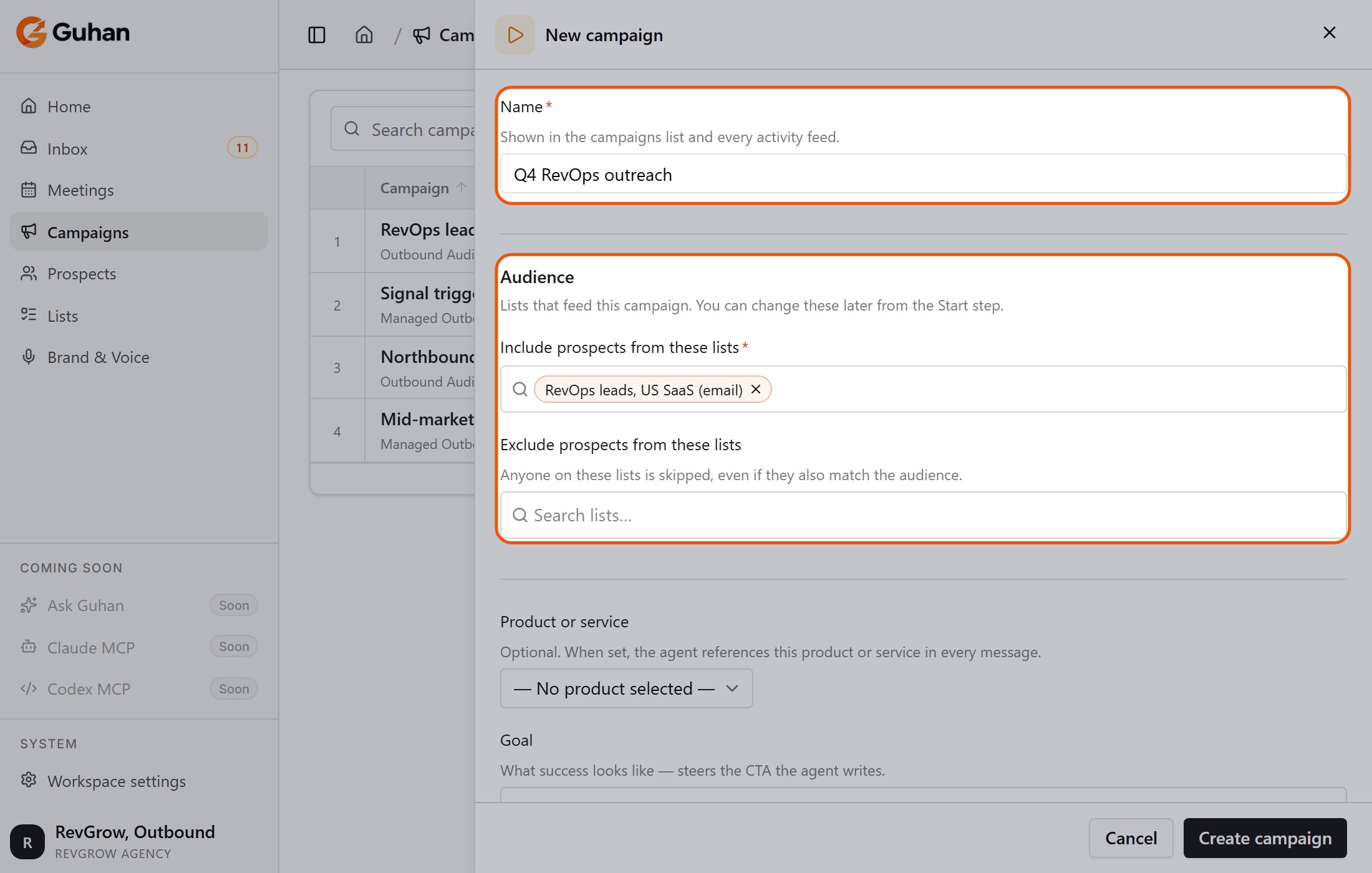
New campaign: the name, then the audience lists to include and exclude
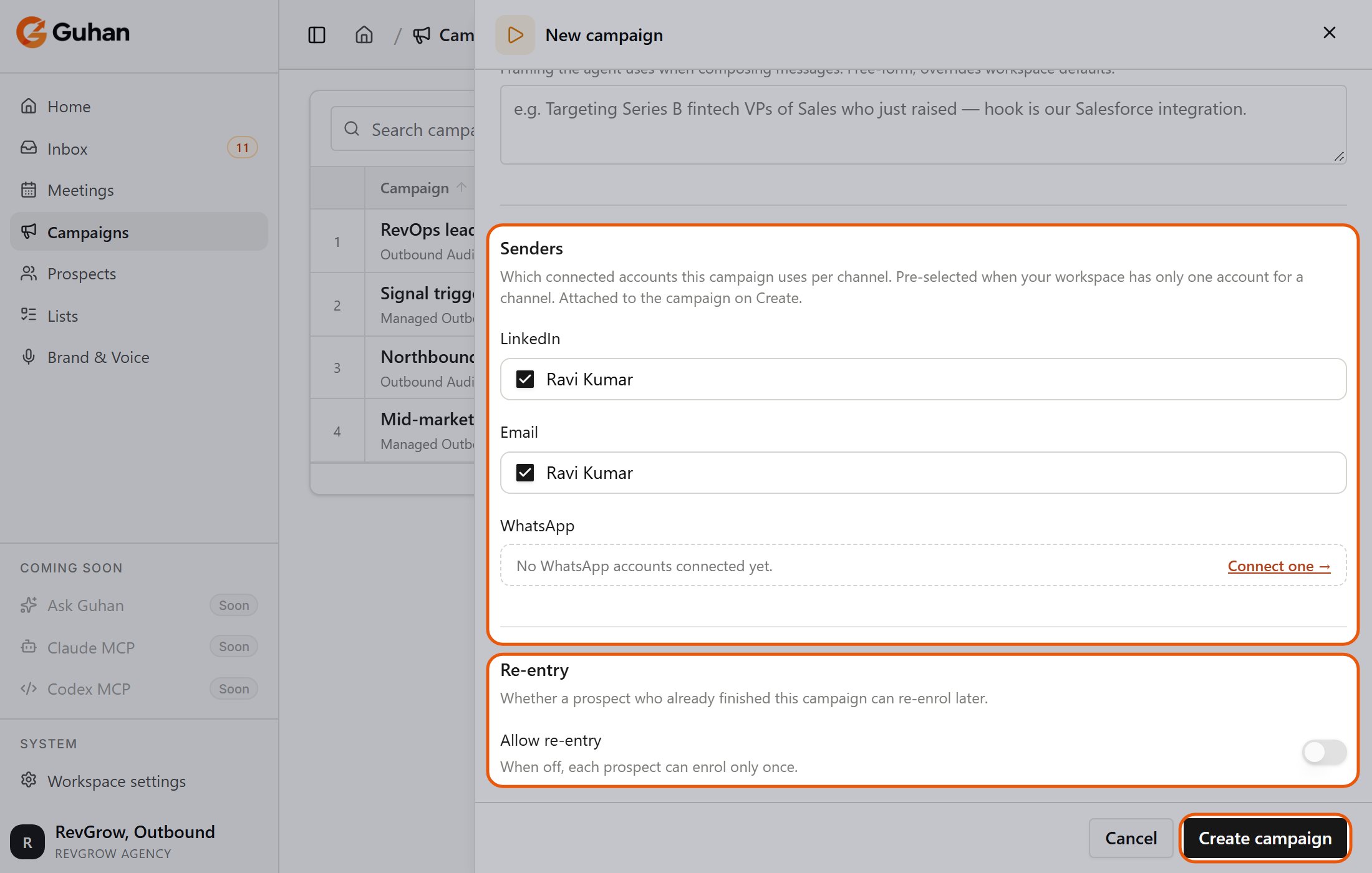
Further down the same sheet: the senders for each channel, the re-entry switch and Create campaign
Change campaign settings later
Click the Start step on the canvas to reopen the same settings in a side sheet. That includes re-entry, which is also on the creation sheet:- Re-entry - turn Allow re-entry on to let a prospect enter this campaign more than once. You set a cooldown (in days) between entries and an optional maximum number of entries. With re-entry off, each prospect can enroll only once.
Build the sequence
The sequence editor shows your steps as a top-to-bottom tree. Branching steps split the tree into side-by-side columns.- Add a step. Click the + on any connector line and pick a step type. The picker only offers steps that make sense at that spot, and greyed-out options tell you why (for example, “AI reply must follow a wait for a reply”).
- Edit a step. Click the step card, or its pencil icon, to open its settings.
- Copy, paste, or delete. Each card has copy and trash icons. Deleting a step in a straight line offers to bridge the gap or remove everything after it. On a branch, you can keep one path and drop the others. Copy works the same way, and a copied step can be pasted on any connector.
- Undo and redo. Press Cmd+Z / Cmd+Shift+Z (Ctrl on Windows).
- Autosave. Changes save automatically as a draft. The bar above the canvas shows Editing and whether the sequence is Valid, and has undo and redo buttons, Test run, Discard changes and a full-screen toggle.
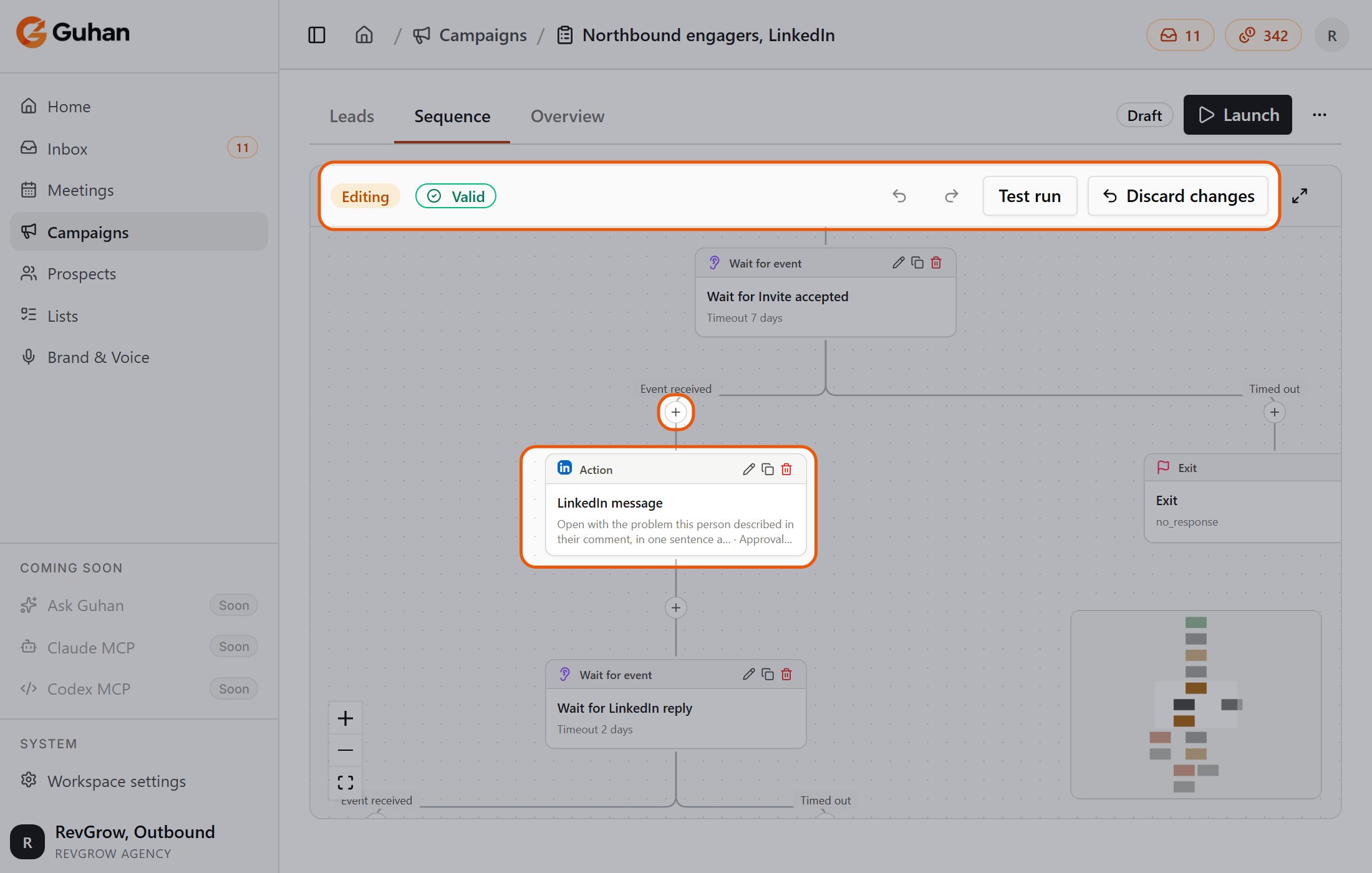
The sequence editor: the bar above the canvas, a + on a connector to add a step, and a step card with its edit, copy and delete icons
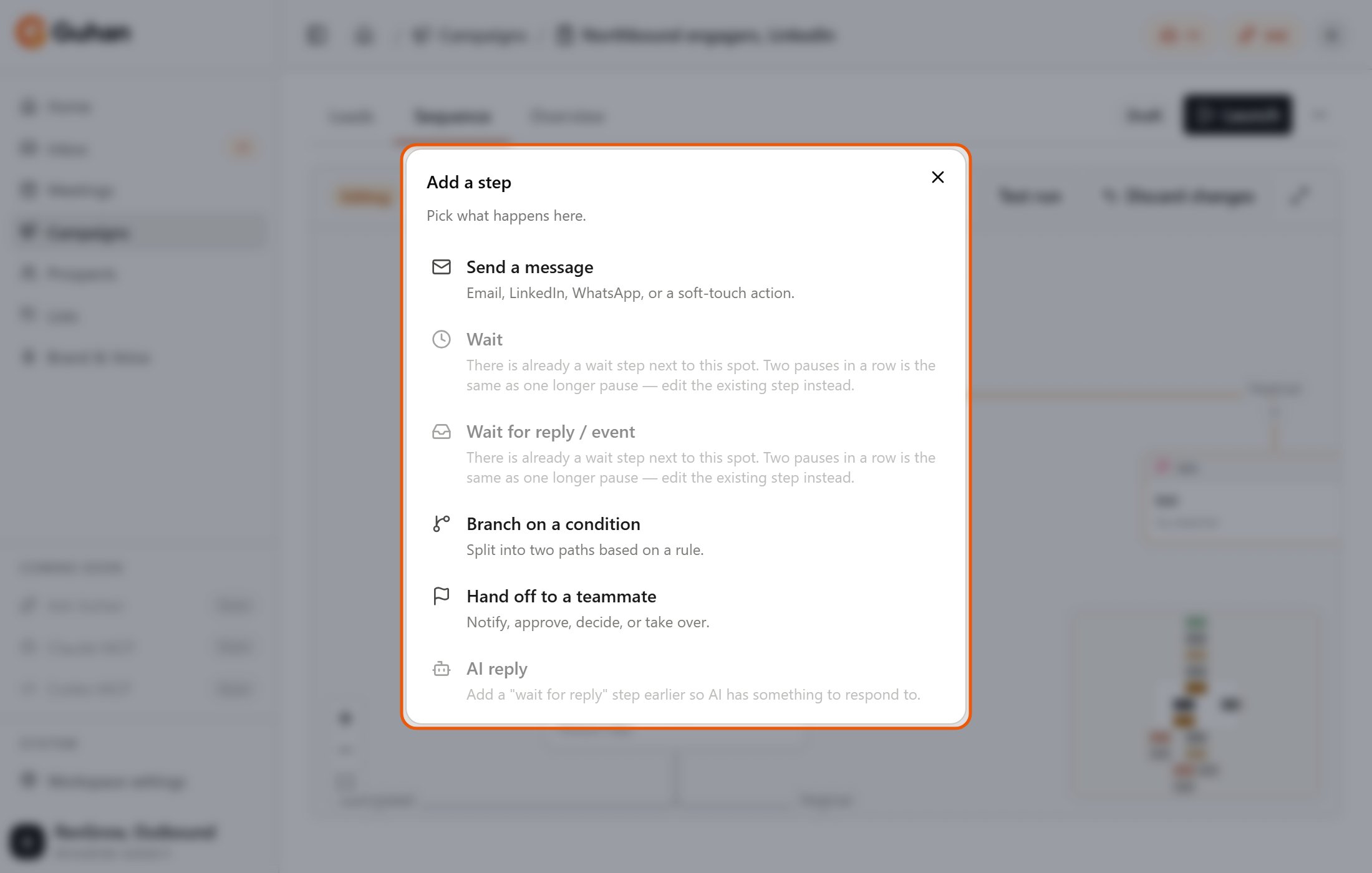
The + picker only offers steps that fit. Greyed-out options say why
Step types
Send a message
Send a message
- LinkedIn: send an invite, send a DM (to a connection), visit their profile, comment on one of their posts, or react to one of their posts.
- Email: send an email. Follow-up emails in the same sequence reply in the same thread (subject shown as “Re: …”).
- WhatsApp: send a WhatsApp message.
- Require approval before sending - Guhan drafts the message, then holds it in your Tasks until you click Send. Available on steps that have text.
- Reference their recent posts & activity - LinkedIn DMs only. Guhan reads one of the prospect’s recent posts and can open with it. If they have no usable post, the message is written without one.
- Comment and react steps - choose whether Guhan targets their latest post or their most-engaged recent post, and how old a post may be (default 30 days). For reactions, choose the reaction type. If the prospect has no qualifying post, the step is skipped and the sequence moves on.
- Visit profile triggers a “viewed your profile” notification for the prospect.
Wait
Wait
Wait for reply / event
Wait for reply / event
Branch on a condition
Branch on a condition
- Prospect: job title, department, seniority, headline, location, has email, has phone number, do not contact.
- Company: industry, headcount, HQ country, HQ city, founded year.
- How they were added: signal source, agent search, manual paste, CSV upload, or cloned from another list.
- Lists: also in a list, or not in another list.
- Time: days since added, days in list, days enrolled in this campaign.
Hand off to a teammate
Hand off to a teammate
- Notify - sends you a heads-up task for context.
- Take over - you grab the conversation and send the next message yourself while Guhan steps aside. When you have sent (or skipped), the sequence continues down its single outgoing path.
AI reply
AI reply
- Send for approval - on, the drafted reply waits in Tasks for you. Off, it sends automatically. Meeting requests always go to a person, whichever way this is set.
- Max consecutive replies - 1 to 10. Above 1, Guhan keeps the conversation going, waiting for the prospect’s next reply each time. Guhan stops at 20 replies per prospect no matter what.
- Reply timeout - how long to wait for the prospect’s next reply (1 hour to 30 days). Default 3 days.
Exit
Exit
Start
Start
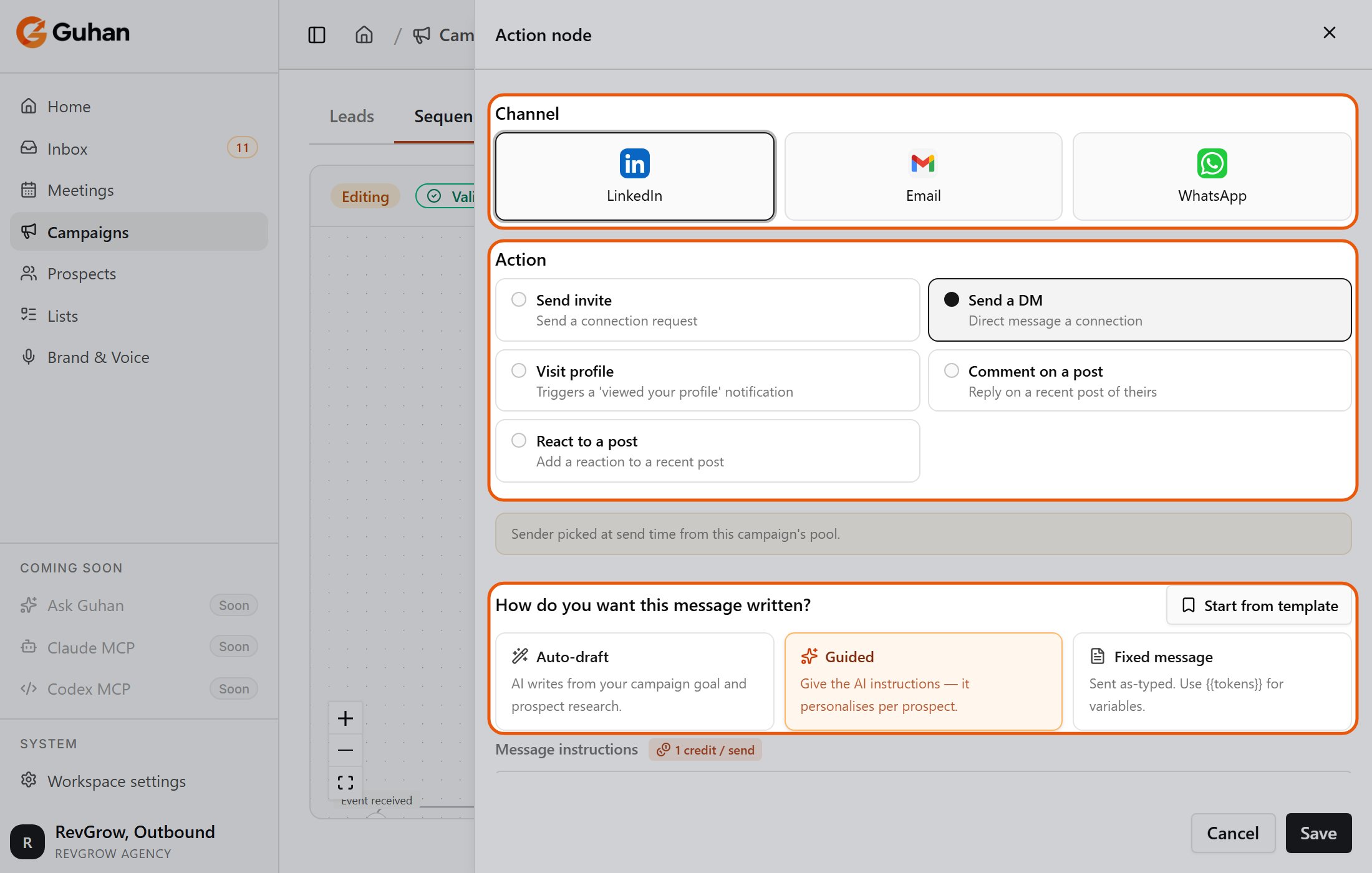
A message step: pick the channel and the action, then how the message is written
Message modes
Each message step has three modes. Pick one with the tiles under How do you want this message written? in the step settings.{{firstName}}, {{company}}, {{title}}, {{senderFirstName}}, and {{signature}}. The Insert variable menu lists everything available. If a token has no value for a prospect, that send is skipped instead of going out with a blank, so you never send “Hi , thanks for reading”.
Use Start from template to fill in a step from your template library. A template is copied into the step, so later edits to the template do not change steps you already built.
The step settings include a preview: pick one of your prospects and see the draft Guhan would write. More on how drafts are written in Personalization.
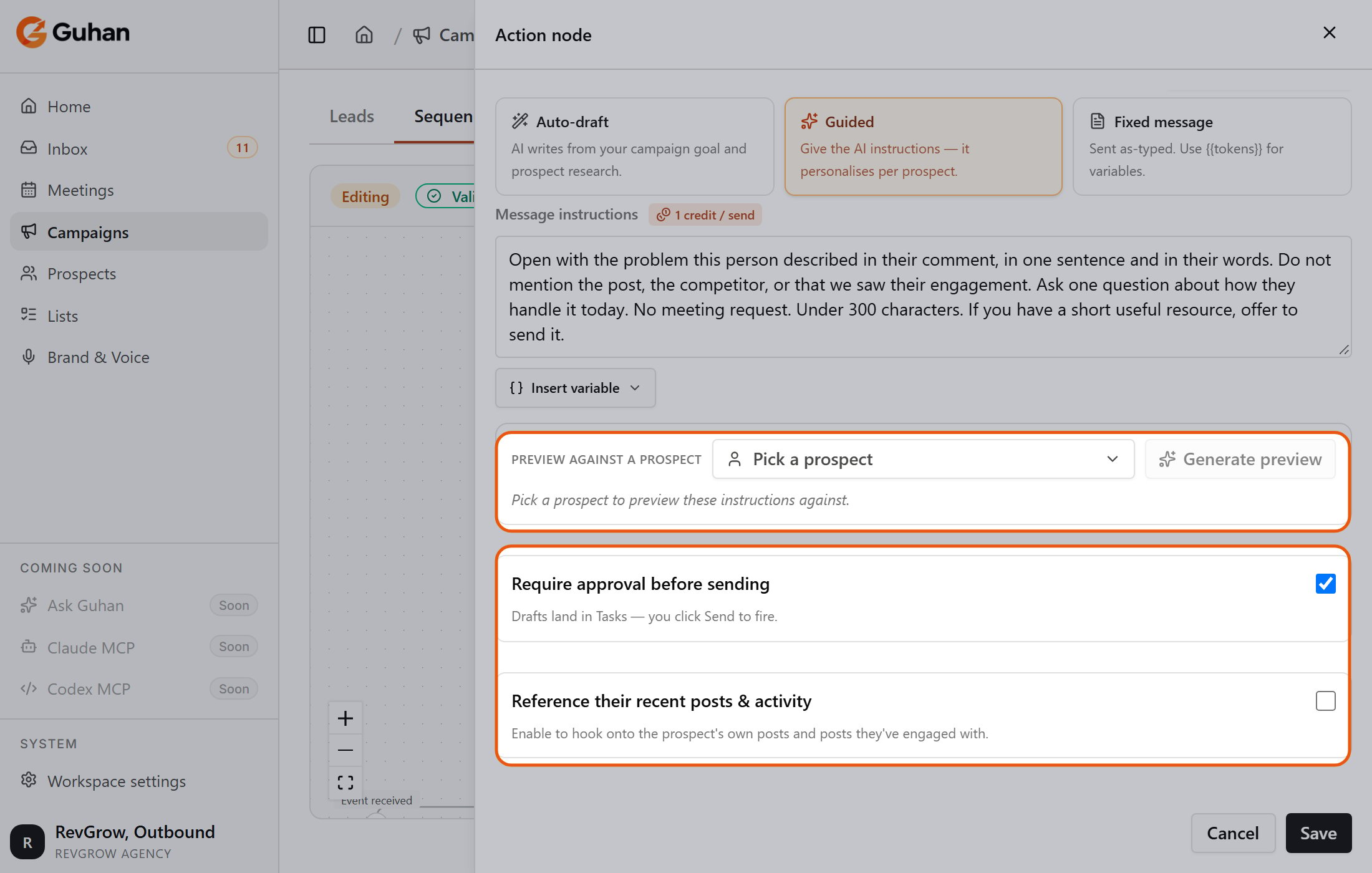
Further down the step: preview a draft against one of your prospects, require approval, and reference their posts
Test the sequence
Click Test run in the editor bar, pick a prospect, and walk them through the sequence to see what would happen and in what order. Nothing is sent. The test run shows a template-level preview; it is not a full personalized draft.If something is off
A step shows a red error on its card
A step shows a red error on its card
The + picker has greyed-out options
The + picker has greyed-out options
I cannot edit the sequence
I cannot edit the sequence